
Any Windows system administrator frequently has to find out why a disk is full and my favourite tool for this is Windirstat. Unfortunately Windirstat does not easily allow you to export the results to a CSV file for analysis.
I intend to import the CSV file into Excel and then create a pivot table that I can use to give me summary information such as,
- directory sizes
- biggest files
- size by file type (there will be videos…)
- date file created
- …
Once the data is in Excel I can also add extra columns such as “Archive or Delete” and do “what if” analysis.
As soon as you try to get this information at the command prompt you quickly run up against the problem that Windows does not report directory sizes and the standard listing “dir /s” is unsuitable for creating a CSV file. However after a bit of Googling and some debugging (yes, some users do put commas in file names) I have written a batch file that creates a suitable CSV file.
It returns quickly on small directories and takes about an hour a Terabyte on larger drives (your mileage may vary). I recommend that you open taskmgr.exe and look the CPU and RAM use and periodically check the job while you do something else. Ideally someone (not me) should restructure the main loop into a loop per directory. This would reduce memory load and allow a progress indicator during the file enumeration. Feel free to have a go.
@echo off
echo ------------------------------------------------------------------------------
echo((c) james@elephantpm.com MIT Licence)
echo This script generates a CSV file containing information about each file that
echo is suitable for analysis in Excel.
echo ------------------------------------------------------------------------------
echo
SETLOCAL ENABLEDELAYEDEXPANSION
echo I am now recursively listing every file in this directory and its size into a
echo csv file. This may take some time
echo FULLPATH,DIRECTORY,FILENAME,SIZE,FILEDATE,DATE,DIME,YEAR,MONTH,DAY,HOUR,MINUTE,ATTRIBUTES,EXTENSION,LEVEL01,LEVEL02,LEVEL03,LEVEL04,LEVEL05,LEVEL06,LEVEL07,LEVEL08,LEVEL09,LEVEL10 > FILES-AND-SIZES.CSV

rem http://superuser.com/questions/653860/list-files-recursively-showing-only-full-path-and-file-size-from-windows-command
rem set /a for numerical values
set /a "count=100"
@echo off & for /f "delims=*" %%A in ('dir /s /b /a:-d') do (
 rem output a "." to screen every 100th file
 set /a "count+=1"
 set "lastDigitOfCount=!count:~-2!"
 if !lastDigitOfCount! == 00 (<nul (set /p junk=.))
 rem now write the data to file
 set "size=%%~zA"
 set "extension=%%~xA"
 rem next escape commas in the file name to create a csv list of directories
 set "fullPathToFileIncludingName=%%~fA"
 set "noCommasInFullPath=!fullPathToFileIncludingName:,=this is the substitution text for comma!"
 rem next create a set of quoted comma separated strings for each directory name
 set "csvPath="!noCommasInFullPath:\=","!""
 rem next put the comma back
 set "csvPath1=!csvPath:this is the substitution text for comma=,!"
 rem next file name
 set "fileName=%%~nA!extension!"
 rem next get directory
 set "directory=%%~pA"
 rem next make nice date data for sorting and filtering
 set "dateTime=%%~tA"
 set "dateTimeDay=!dateTime:~0,2!"
 set "dateTimeMonth=!dateTime:~3,2!"
 set "dateTimeYear=!dateTime:~6,4!"
 set "dateTimeHour=!dateTime:~11,2!"
 set "dateTimeMinute=!dateTime:~-2!"
 set "dateOnly=!dateTimeYear!/!dateTimeMonth!/!dateTimeDay!"
 set "timeOnly=!dateTime:~11,5!
 set "attributes=%%~aA"
 rem to force loop-time evaluation of the variable we had to enable SETLOCAL on line 1 above see http://www.robvanderwoude.com/variableexpansion.php
 rem note how all string fields are quoted as required by the CSV specification
 echo "!fullPathToFileIncludingName!","!directory!","!filename!", !size!,"!dateTime!","!dateOnly!","!timeOnly!",!dateTimeYear!,!dateTimeMonth!,!dateTimeDay!,!dateTimeHour!,!dateTimeMinute!,"!attributes!","!extension!", !csvPath1! >> files-and-sizes.csv

 )
echo DONE!!!!!!!!!!!!!!!!!!!!!
echo Open files-and-sizes.csv in Excel and insert a table. You may add additional columns for
echo filtering or other purposes for example I usually add "Size in MB". Click in
echo your new table and insert a pivot table. My default setting are
echo Report Filter: Extension
echo Row Labels: LEVEL01,...,LEVEL10
echo Values: Sum of Size
echo This pivot table will show you sizes of each directory.
ENDLOCAL
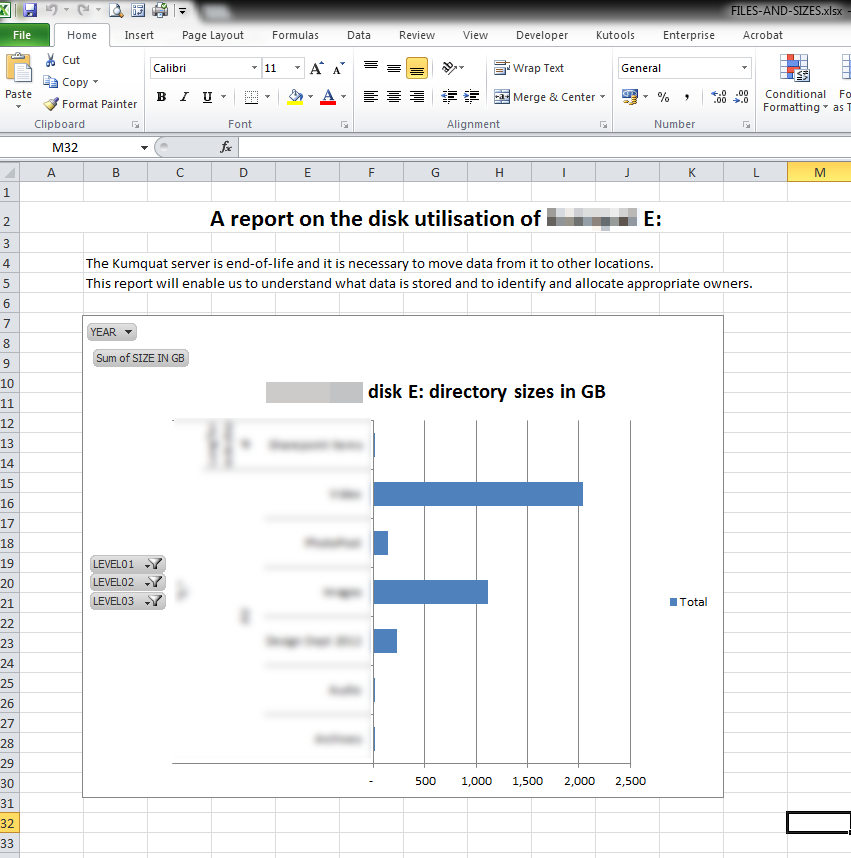
Here are some examples of reports in Excel

 Dr James Bayley