
In my previous post I noted that I had not succeeded in in connecting to a linux machine as root using WINSCP when using the bitnami virtual machine.
My development implementation works, so I have progressed to using the cloud hosted bitnami instance. This comes with public key access rather than password access. This actually make it easier to connect.
- Download your private key, if using bitnami use the cloud console, if using AWS use the AWS console. Store it with no spaces in the file name.
- Optionally put it into your Pageant keystore
- Verify that you can connect using PuTTY
{update 2014-02-07} You now have two choices, you may use the SFTP protocol or the SCP protocol. My experience shows that connecting with SCP is easier.
USE the SCP protocol (preferred)
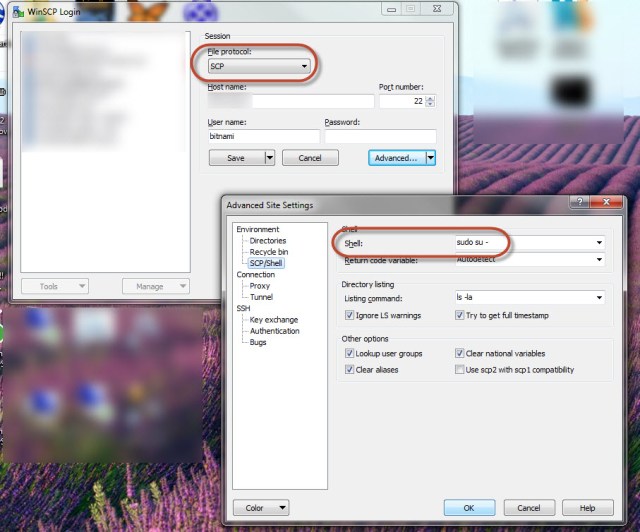
- Test connecting with WINSCP using using the SCP protocol and the bitnami (low priviledge user) and your private key.
- On the Advanced tab of WINSCP specify the Shell to be
-
sudo su-
-

Use the SFTP protocol
- Test connecting with WINSCP using the SFTP protocol using the bitnami (low priviledge user) and your private key.
- Find the location of the sftp server, you will enter this into WINSCP later
-
$ whereis sftp-server
-
- On the Advanced tab of the WINSCP specify the sudo -s command to run the server as su. This works because you are using PKI and are not asked to provide a password when you sudo.
- sudo -s /usr/lib/sftp-server
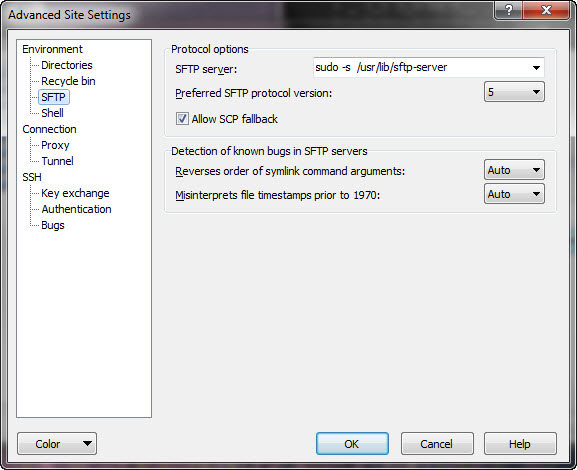
- You should now be able to connect.
 Dr James Bayley
25 responses to “How to connect as root using WINSCP”
[…] can use WinSCP over ssh to edit locally on your PC using Notepad and then synchronise (very […]
Thanks!
[…] https://blog.jamesbayley.com/2014/01/28/how-to-connect-as-root-using-winscp/ […]
thanks this post save me 2hrs.
nice tutorial
Helpful, thanks. I found that I had to set the shell as “sudo /bin/bash” to get this to work with my Bitnami / WordPress stack on Azure. (It was “/bin/bash” previously.)
Thanks. This option worked for me. Sudo -su option was throwing me out. Env. WinScp and Redhat Linux
Same worked for me as well (bin/bash) instead of sudo su-
Great!
Doesn’t work on Win10 connecting to Ubuntu 16.04 host on my LAN. WinSCP just immediately closes the tab after connecting.
While I do not know the cause of this my first thought is “it is always the firewall”.
Please turn off your Windows 10 firewall. If possible verify that your Ubuntu host has the required ports open and then retest.
Good luck, James
Thanks a lot. Very Clear and useful. For me Sudo -su didn’t worked! So used su /bin/bash as pointed by Mark Berry above.
Another comment, sftp-server location may vary. In RedHat Linux , I found it under /usr/libexec/openssh
Thank you for this helpful feedback.
Thank you! I love you!
Thanks!
I’ve tried quite a few custom shell variables within WinSCP’s advanced settings. It returns “Server sent command exit status 1” every time. I’m trying to connect to a Ubuntu server as root, through a user that is in the sudoers file marked NOPASSWD.
I am sorry but I don’t know to fix this issue. If I find out I will update this thread.
Thanks for sharing this it saved me a lot of time.
[…] A useful blog article I used to setup my WinSCP: https://blog.jamesbayley.com/2014/01/28/how-to-connect-as-root-using-winscp/ How to use […]
Great tips. Saved hours of mine and worked like charm. I just wanted to copy some files on WordPress server using WinSCP.
Thanks
[…] 16. How to connect as root using WINSCP | Dr James Bayley […]
[…] 1. How to connect as root using WINSCP | Dr James Bayley […]
[…] » Visit Now In my previous post I noted that I had not succeeded in in connecting to a linux machine as root using WINSCP when using the bitnami virtual machine. My development implementation works, so I have progressed to using the cloud hosted bitnami instance. This comes with public key access rather than password access. This actually… […]